
What You'll Need
- An active Objectionly account
- Access to your Quo account and call recordings
- A Zapier account
Quo Setup
1
Import the Zapier template and configure the Quo trigger
Use the
Quo Zapier template
to create the Zap.For the first step, use the Quo trigger event
Call Recording Completed.In Zapier’s configuration tab, choose which phone numbers you want to pull
calls from.
2
Format duration, call title, and rep identifier in a code step
For the second step, add a Code by Zapier action and use
Run Python.Add these four input data fields: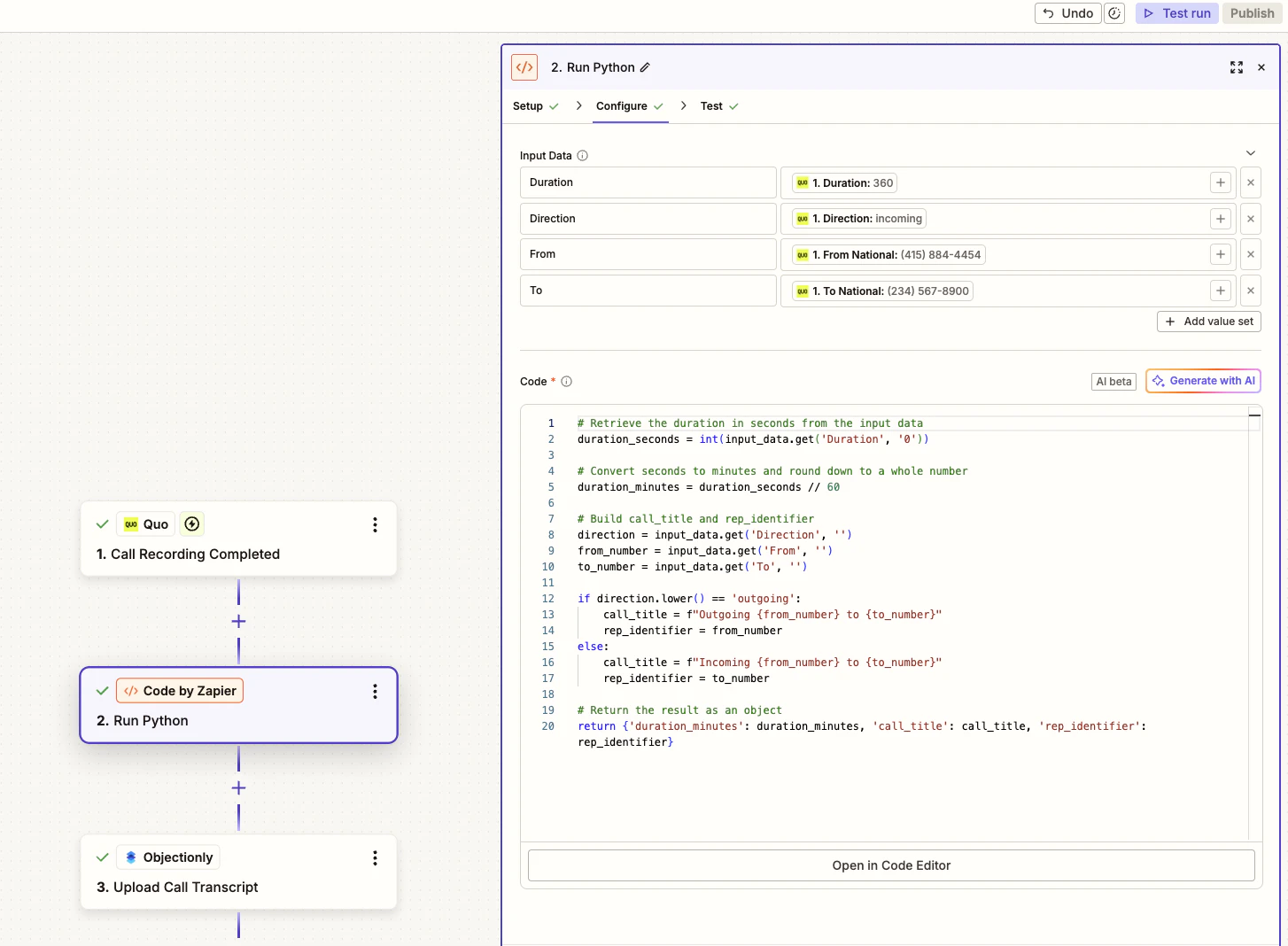
DurationDirectionFromTo
3
Send the formatted call data to Objectionly
For the third and final step, use
Upload Call Transcript for Objectionly.Configure the action with these values: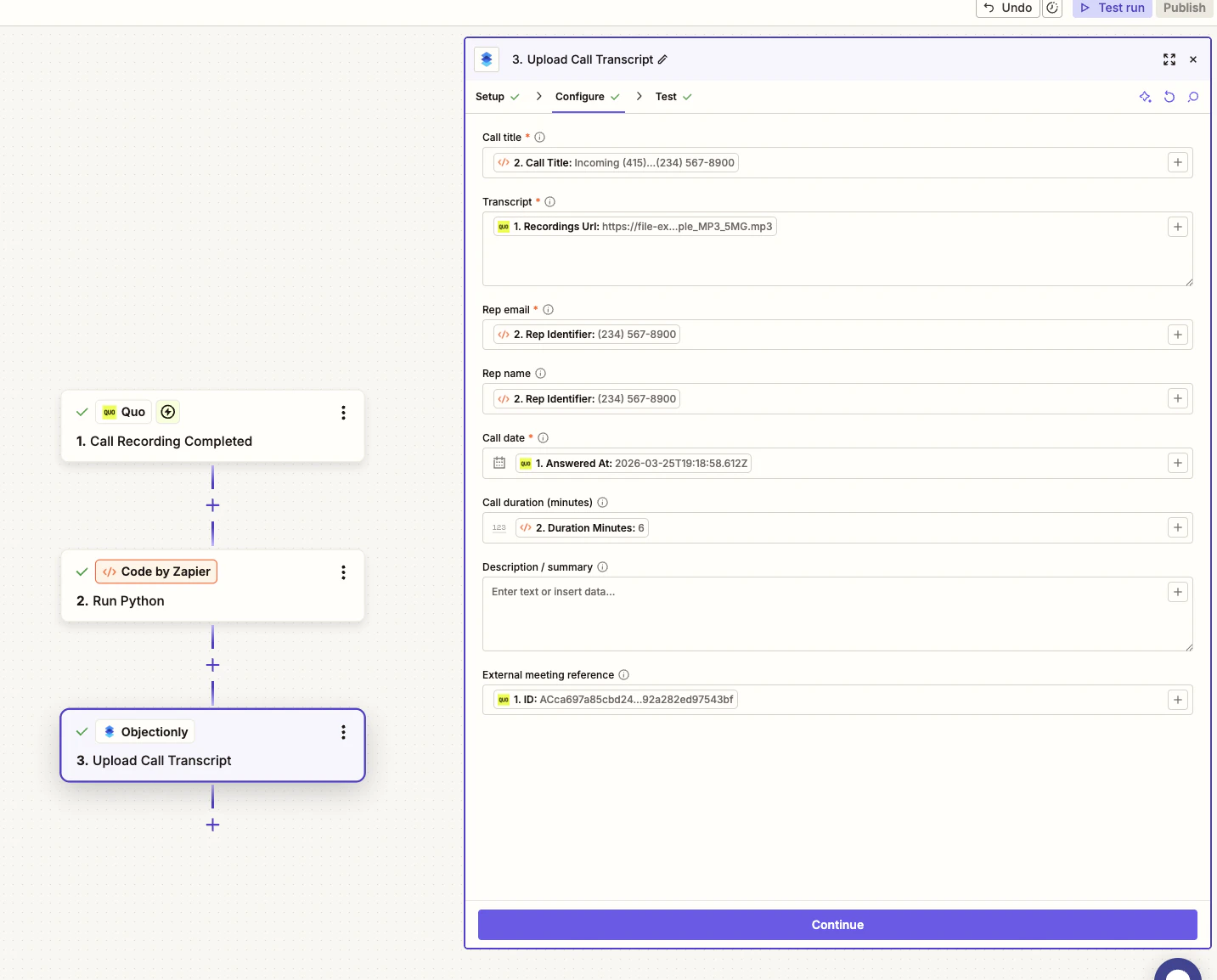
- Call title:
call_title - Transcript:
Recordings URL - Rep identifier:
rep_identifier - Call date:
Call Date - Call duration (minutes):
duration_minutes - ID:
ID
Why this matters
Consistent rep mapping
Using the rep phone number as the rep identifier keeps calls mapped to the
correct rep in Objectionly for both inbound and outbound calls.
Cleaner call records
The code step creates readable titles and converts Quo duration values into
the minutes field expected by Objectionly.