> ## Documentation Index
> Fetch the complete documentation index at: https://docs.objectionly.com/llms.txt
> Use this file to discover all available pages before exploring further.
# Managing Reps
> Add, edit, and remove sales rep profiles from your Objectionly Dashboard.
**Who can do this:** Admins
Reps are the sales rep profiles whose calls are tracked and reported in Objectionly. Admins manage reps from the Dashboard.
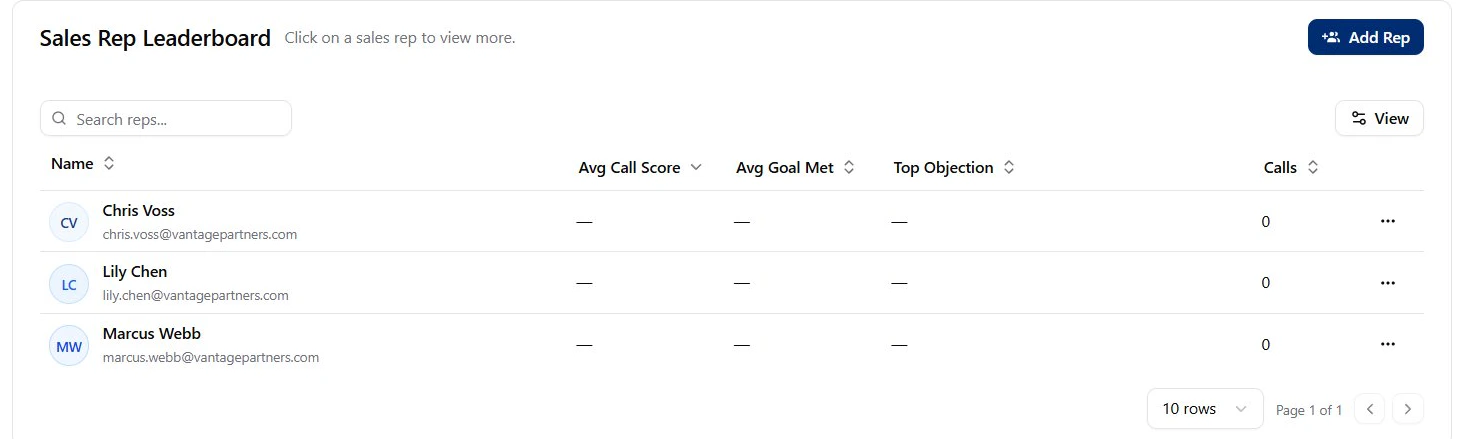 ## Rep management tasks
Create a profile so Objectionly can attribute calls and reporting to a salesperson.
Update a rep's name, identifier, or scoring framework.
Remove a rep profile that should no longer be tracked.
A Rep is a reporting profile, not a login account. To let a rep log in, invite
them as a Member after creating the rep.
## What's next
Let a rep log in to review their own calls and reports.
Control which reps each Member can view.
Understand all reps, specific reps, and no reps assigned.
## Rep management tasks
Create a profile so Objectionly can attribute calls and reporting to a salesperson.
Update a rep's name, identifier, or scoring framework.
Remove a rep profile that should no longer be tracked.
A Rep is a reporting profile, not a login account. To let a rep log in, invite
them as a Member after creating the rep.
## What's next
Let a rep log in to review their own calls and reports.
Control which reps each Member can view.
Understand all reps, specific reps, and no reps assigned.