> ## Documentation Index
> Fetch the complete documentation index at: https://docs.objectionly.com/llms.txt
> Use this file to discover all available pages before exploring further.
# Invite a Member
> Invite a teammate as a Member so they can log in and view assigned rep data.
**Who can do this:** Admins
Invite a teammate as a Member when they need to log in and view data, but should not manage the workspace.
 ## Invite a Member
Open Team page
Start a new teammate invitation.
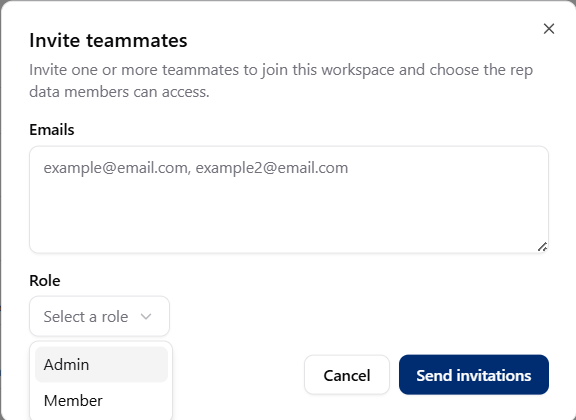
Use the email address they should use to join your workspace.
Select **Member** as their role.
Choose whether they can access all reps, specific reps, or no reps yet.
Select **Send invite**.
The teammate will receive an email invitation to join your workspace.
## What's next
Change which reps the Member can view anytime.
Promote them to Admin later if needed.
## Invite a Member
Open Team page
Start a new teammate invitation.
Use the email address they should use to join your workspace.
Select **Member** as their role.
Choose whether they can access all reps, specific reps, or no reps yet.
Select **Send invite**.
The teammate will receive an email invitation to join your workspace.
## What's next
Change which reps the Member can view anytime.
Promote them to Admin later if needed.