> ## Documentation Index
> Fetch the complete documentation index at: https://docs.objectionly.com/llms.txt
> Use this file to discover all available pages before exploring further.

# Title Filters

> Use meeting title words and phrases to decide which calls Objectionly processes.

<Callout icon="user-shield">
  **Who can do this:** Admins
</Callout>

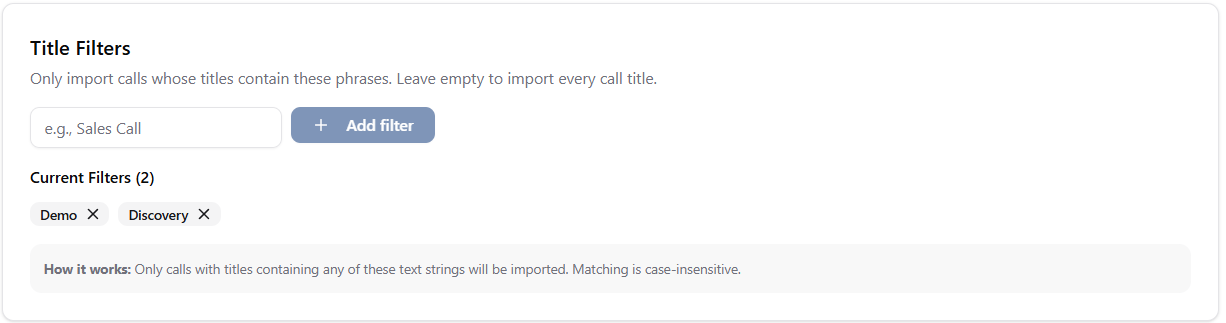
Title Filters let Objectionly process only calls whose titles contain words or phrases you choose. Use them when you want to narrow imports to real sales conversations and skip internal meetings, syncs, or check-ins.
<img src="https://mintlify.s3.us-west-1.amazonaws.com/objectionly/images/Title%20Filters.png" alt="Title Filters settings" />

## How they work

* If you have not added any title filters, **all calls are allowed**.
* If you have added one or more filters, a call's title must match **at least one** filter to be processed.
* Matching is **case-insensitive**.
* The title just needs to **contain** your filter phrase somewhere. It does not need to match exactly.

## Example

<Card title="Filter phrase: demo">
  <Columns cols={2}>
    <div>
      **Matches**

      <p><Icon icon="circle-check" color="#16A34A" /> Product Demo</p>
      <p><Icon icon="circle-check" color="#16A34A" /> Demo with Acme</p>
      <p><Icon icon="circle-check" color="#16A34A" /> Follow-up demo call</p>
    </div>

    <div>
      **Does not match**

      <p><Icon icon="minus" color="#6B7280" /> Internal Standup</p>
      <p><Icon icon="minus" color="#6B7280" /> Weekly Sync</p>
    </div>
  </Columns>
</Card>

Common filter phrases:

* Sales Call
* Demo
* Discovery
* Consultation
* Strategy Call

## Add a title filter

<Steps>
  <Step title="Go to the Meeting Filters page">
    <a href="https://app.objectionly.com/dashboard/settings/meeting-filters" className="inline-flex items-center rounded-lg bg-blue-600 px-3 py-2 text-sm font-medium text-white no-underline hover:bg-blue-700" style={{ color: "#FFFFFF" }}>Open Meeting Filters page</a>
  </Step>

  <Step title="Find Title Filters">
    Open the **Title Filters** area.
  </Step>

  <Step title="Enter a word or phrase">
    Add the word or phrase you want meeting titles to match.
  </Step>

  <Step title="Add the filter">
    Select **Add filter**.
  </Step>
</Steps>

## Remove a title filter

<Steps>
  <Step title="Go to the Meeting Filters page">
    <a href="https://app.objectionly.com/dashboard/settings/meeting-filters" className="inline-flex items-center rounded-lg bg-blue-600 px-3 py-2 text-sm font-medium text-white no-underline hover:bg-blue-700" style={{ color: "#FFFFFF" }}>Open Meeting Filters page</a>
  </Step>

  <Step title="Find Current Filters">
    Open the list of existing title filters.
  </Step>

  <Step title="Remove the filter">
    Select the remove icon next to the filter you want to delete.
  </Step>
</Steps>

After removing all title filters, Objectionly will allow all meeting titles again.

<Tip>
  If valid sales calls are getting filtered out, your title filters may be too
  narrow. Try broader phrases, or check [Filtered Out Calls](/meeting-filters/filtered-out-calls)
  to see what is getting blocked.
</Tip>
