> ## Documentation Index
> Fetch the complete documentation index at: https://docs.objectionly.com/llms.txt
> Use this file to discover all available pages before exploring further.
# Fathom
> Connect Fathom to Objectionly to import call transcripts.
* An active Objectionly account
* A Fathom account with access to API keys
## Connect Fathom
Go to the
[Objectionly integrations page](https://app.objectionly.com/dashboard/integrations).
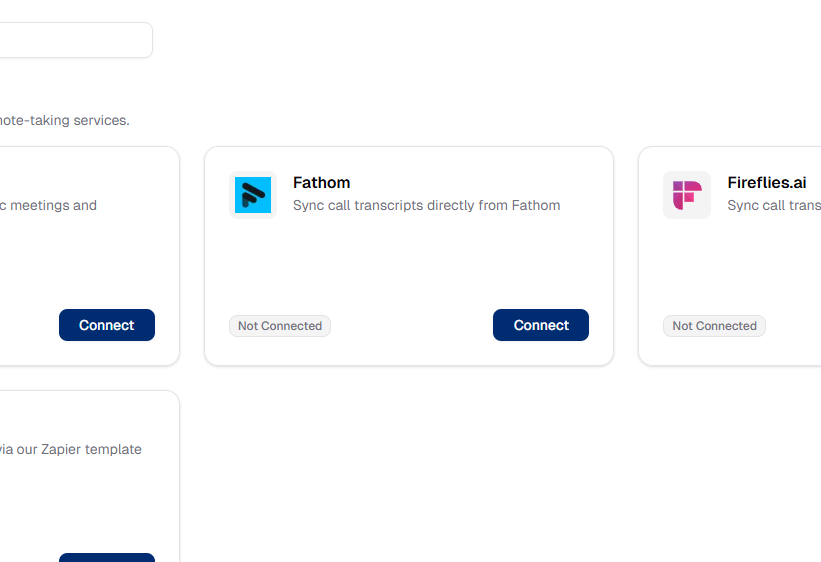
Find the Fathom card and click **Connect**.
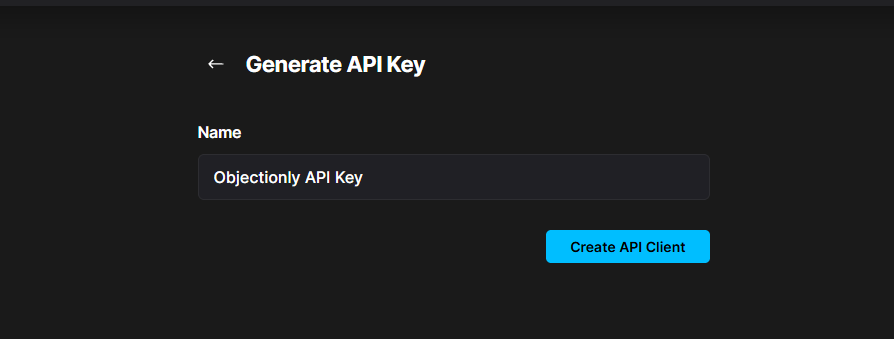
 Open the [Fathom API keys page](https://fathom.video/api_clients/new) and
create a new API key.
We recommend naming it **Objectionly API key**.
Open the [Fathom API keys page](https://fathom.video/api_clients/new) and
create a new API key.
We recommend naming it **Objectionly API key**.
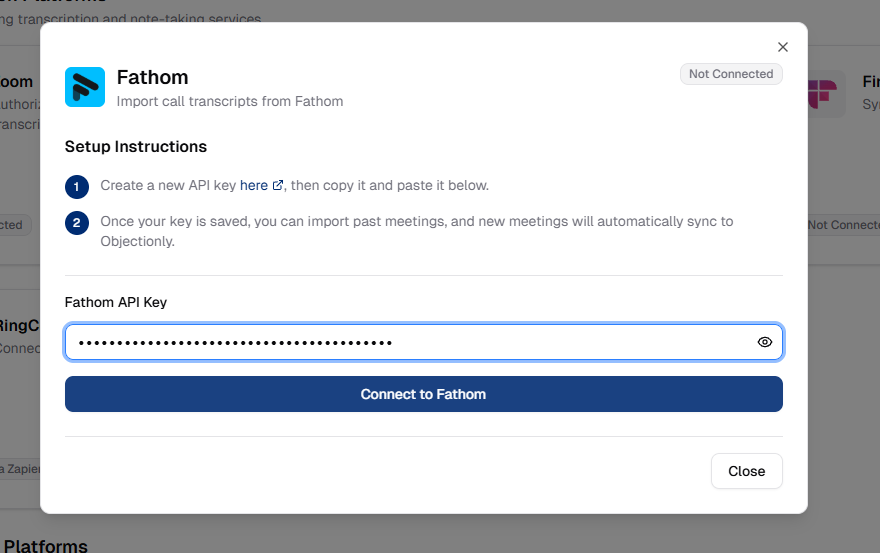
 Copy the API key, paste it into the Objectionly input, and click
**Connect to Fathom**.
Copy the API key, paste it into the Objectionly input, and click
**Connect to Fathom**.
 ## What happens next
New Fathom meetings will automatically sync to Objectionly for processing.
Use **Import Previous Meetings** to bring in historical calls on demand.
## What happens next
New Fathom meetings will automatically sync to Objectionly for processing.
Use **Import Previous Meetings** to bring in historical calls on demand.